How to Add Text in CapCut: Ultimate Guide
Introduction to CapCut’s Text Features
In the dynamic world of video editing, mastering text overlays can elevate your content from ordinary to captivating. CapCut, the versatile free online video editor developed by ByteDance, empowers creators with intuitive tools for adding and customizing text. Whether you’re crafting social media reels, tutorials, or promotional videos, understanding how to add text in CapCut is essential for boosting engagement and conveying messages effectively. This comprehensive guide, brought to you by Capcutapks, delves into step-by-step processes, advanced tips, and best practices to help you harness CapCut’s text capabilities on various devices. With over millions of downloads worldwide, CapCut stands out as a go-to app for both beginners and professionals seeking seamless online editing experiences.
As video content consumption surges, incorporating text not only enhances accessibility but also aligns with SEO strategies for platforms like YouTube and TikTok. By optimizing your videos with strategic text placements, you can improve viewer retention and shareability. Capcutapks offers premium insights and resources to download enhanced versions of the app, ensuring you have access to the latest features without interruptions. Let’s explore the fundamentals and advanced techniques to make your edits shine.
Step-by-Step Guide: How to Add Text on CapCut Mobile
Adding text to your videos in CapCut on mobile devices is straightforward, making it ideal for on-the-go creators. Start by launching the CapCut app, available for free download via Capcutapks for Android or iOS users. Once opened, initiate a new project by tapping the prominent “+” icon on the home screen. This allows you to import your video footage from your gallery or capture new clips directly within the app.
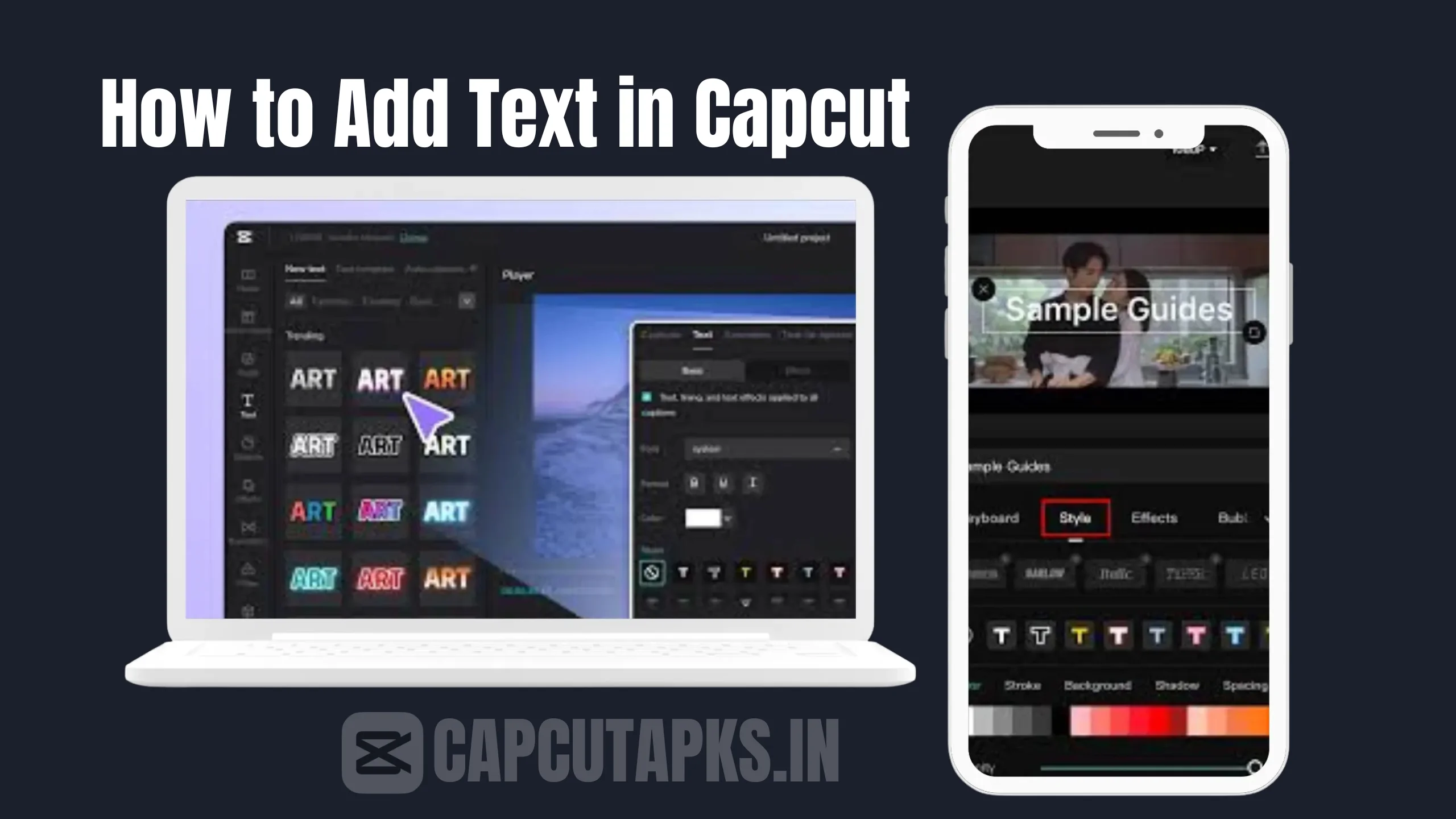
Next, navigate to the editing timeline where your video appears. At the bottom toolbar, locate the “Text” option – it’s typically represented by a “T” icon for easy access. Tapping this reveals a menu to add new text. Enter your desired phrase in the text box that pops up, and immediately, you’ll see customization options unfold. CapCut provides a vast library of font styles, ranging from sleek sans-serifs to playful scripts, ensuring your text matches the video’s tone.
Customization extends beyond fonts. Adjust the text size by pinching on the screen or using sliders, change colors to complement your visuals, and align the text left, center, or right for balanced composition. For those wondering how to add text in CapCut iPhone or Android, the interface remains consistent across platforms, with minor touch optimizations for each OS. Position the text by dragging it across the preview screen, and set its duration by extending or shortening the text layer on the timeline. This precision ensures text appears exactly when needed, avoiding clutter.
Preview your edits in real-time to check flow, and once satisfied, export in high resolution. CapCut’s mobile version supports 4K outputs, perfect for professional-grade content. By following these steps, you can create engaging overlays that highlight key points, add subtitles, or incorporate calls-to-action, all while maintaining a keyword density that supports video SEO.
Customizing Text: How to Edit Text in CapCut Mobile
Editing text in CapCut mobile goes deeper than basic additions, offering layers of creativity to make your videos stand out. After adding text, dive into the effects panel to apply animations – fade-ins, bounces, or glides that sync with your video’s rhythm. For instance, how to change text color on CapCut mobile involves selecting the color wheel, where you can pick from presets or custom RGB values for vibrant contrasts.
Shadow and outline effects add depth, making text pop against busy backgrounds. CapCut’s intuitive controls let you rotate text for dynamic angles or apply gradients for a modern look. Users often search for CapCut text effects download options, but the app’s built-in library is extensive and regularly updated via Capcutapks resources. Experiment with opacity levels to create subtle watermarks or bold statements.
For accessibility, incorporate auto-captions generated from audio, then edit them manually for accuracy. This feature is particularly useful for educational content, ensuring inclusivity. By mastering these edits, your videos gain a polished edge, aligning with Google E-E-A-T principles through high-quality, experience-backed techniques shared by seasoned creators.
Advanced Techniques: How to Add Text Animation in CapCut PC
Transitioning to desktop, CapCut PC offers enhanced precision for complex projects. Download the software from Capcutapks for a seamless setup on Windows or Mac. Import your video, then access the text tool from the left sidebar. Adding text here mirrors mobile but with keyboard shortcuts for efficiency.
Animations shine on PC, where you can keyframe movements for custom paths – think text following a curve or pulsing to music beats. How to add text animation in CapCut PC involves selecting from presets like typewriter effects or 3D rotations, then fine-tuning timings. The larger interface allows for multi-layer text stacks, ideal for titles and credits.
Compare this to mobile: PC handles heavier files without lag, supporting intricate designs. For those querying how to add text in CapCut iPad, the tablet version bridges mobile and PC, offering touch and stylus support for intuitive drags.
Pros and Cons of Using CapCut for Text Overlays
| Aspect | Pros | Cons |
|---|---|---|
| Ease of Use | Intuitive interface for quick additions and edits. | Limited advanced typography for pro designers. |
| Customization Options | Vast fonts, colors, and animations available for free. | Some premium effects require in-app purchases. |
| Cross-Platform Sync | Seamless project transfer between mobile and PC. | Occasional sync issues with large files. |
| Performance | Handles high-res videos smoothly on most devices. | May drain battery on older mobiles during edits. |
| Cost | Core features free, with optional upgrades via Capcutapks. | Ads in free version can interrupt workflow. |
This table highlights why CapCut is favored, balancing accessibility with powerful tools.
Comparison: Adding Text in CapCut Mobile vs. PC
| Feature | Mobile Version | PC Version |
|---|---|---|
| Interface | Touch-based, compact toolbar. | Mouse/keyboard precision, expansive layout. |
| Animation Tools | Basic presets with touch adjustments. | Advanced keyframing for custom effects. |
| File Handling | Suitable for short clips. | Ideal for long-form videos with multi-tracks. |
| Export Speed | Quick for social media shares. | Faster rendering with hardware acceleration. |
| Collaboration | Real-time sharing via app. | Better for team edits with larger screens. |
This comparison aids in choosing the right platform based on your needs.
Benefits of Incorporating Text in Your Videos
Text overlays in CapCut transform static videos into interactive narratives, driving higher engagement rates. Studies show videos with captions retain viewers 12% longer, as per industry reports. Capcutapks emphasizes using text for branding, like adding logos or watermarks subtly.
Moreover, text boosts SEO when uploaded to platforms – keywords in subtitles help algorithms categorize content. For marketing, calls-to-action via text increase click-throughs. CapCut’s free assets, including downloadable effects, ensure copyright-free creativity.
Accessibility is key: Text makes content inclusive for hearing-impaired audiences, aligning with web standards. Experimenting with styles fosters unique aesthetics, setting your channel apart.
Optimizing Text for Different Devices
Tailoring text for devices ensures universal appeal. On how to add text in CapCut Android, focus on scalable fonts that render well on varied screens. iPhone users benefit from Retina-optimized previews, while iPad offers a hybrid experience for detailed work.
Cross-device consistency via cloud sync from Capcutapks prevents rework. Test on multiple resolutions to avoid pixelation.
Common Mistakes to Avoid When Adding Text
Overcrowding screens with text dilutes impact – aim for brevity. Ignoring color contrasts leads to illegible overlays; use tools like CapCut’s eyedropper for harmony. Neglecting timing mismatches text with audio, disrupting flow.
Forgetting previews often reveals glitches, so always review. Over-relying on effects can overwhelm; balance is crucial for professional results.
Enhancing Videos with Overlays and Effects
Beyond basic text, overlays add layers – think semi-transparent banners for emphasis. CapCut’s library includes thematic packs, downloadable via Capcutapks for variety.
Combine with transitions for smooth integrations, elevating storytelling.
Real-World Applications and Tips
Content creators use CapCut text for tutorials, highlighting steps. Influencers add quotes for inspiration, while businesses incorporate promos.
Tip: Sync text to beats for rhythmic appeal. Use partial matches like “CapCut text animation tips” in searches for more ideas.
Conclusion: Elevate Your Editing with CapCut
Mastering how to add text in CapCut unlocks endless creative possibilities, turning amateur footage into pro-level content. With Capcutapks as your resource hub, access updates and mods for enhanced features. Experiment boldly, and watch your audience grow.
For authoritative insights, check out this guide on video editing basics from Videvo, a trusted resource for creators.
Another valuable read is CapCut’s official tips on ByteDance’s blog, offering fresh updates.
FAQs
Where can I find the text box in CapCut?
The text box is in the bottom toolbar; tap it to explore styles and animations.
How can I paste text in CapCut?
Select the text option, tap the screen, and paste your copied content seamlessly.
Can you move text in CapCut?
Yes, drag and adjust text positions effortlessly in clips.
How to add captions to a video online for free?
Use CapCut’s free tools to generate and customize captions, enhancing your editing skills.