Remove Watermark in CapCut: 7 Essential Methods
CapCut stands out as a popular video editing application that empowers creators to produce engaging content for platforms like TikTok and Instagram. However, the free version often adds a branding mark to exported videos, which can detract from the overall professionalism. If you’re searching for ways to remove watermark in CapCut, this comprehensive guide explores reliable techniques, including built-in features and external tools.
By following these steps, you can achieve clean outputs that align with your creative vision. Whether you’re editing on mobile or desktop, understanding how to handle this element ensures your videos maintain a polished appearance without unnecessary distractions.
What Is the CapCut Watermark?
The CapCut watermark serves as a subtle logo or text overlay that appears on videos processed through the app’s free tier. Typically positioned at the end of clips or in corners when using templates, it promotes the platform while reminding users of its role in the editing process. This mark encourages exploration of premium features, but for many creators, it interrupts the seamless flow of their content. Removing it allows for greater customization, especially when sharing on social media or professional portfolios. In essence, it’s a branding tool that can be managed through various app settings or third-party solutions, ensuring your final product reflects only your intended message.
Benefits of Removing the CapCut Watermark
Eliminating the CapCut watermark enhances the visual integrity of your videos by directing focus solely to your narrative and aesthetics. This step fosters brand consistency, as it prevents third-party logos from clashing with your personal or business identity. Creators often find that watermark-free videos appear more credible, boosting viewer engagement and sharing potential.
Additionally, it streamlines the editing workflow, saving time that might otherwise be spent on manual adjustments. For those producing content for commercial purposes, this removal contributes to a refined output that aligns with industry standards, ultimately supporting higher retention rates and better audience reception.
How the CapCut Watermark Functions
CapCut incorporates watermarks in three primary forms to integrate branding seamlessly into the editing experience. The default outro version appears at the video’s conclusion, displaying the app’s logo as a promotional tag. When working with pre-designed templates, a static mark might show in the upper right corner during export, tied directly to the template’s structure. Users can also add custom watermarks, such as logos or text, to claim ownership or enhance branding. These elements are designed to be optional in many cases, allowing editors to toggle them off via settings or by trimming specific clips. Understanding these variations helps in selecting the most efficient removal approach tailored to your project.
How to Remove Watermark in CapCut 2026
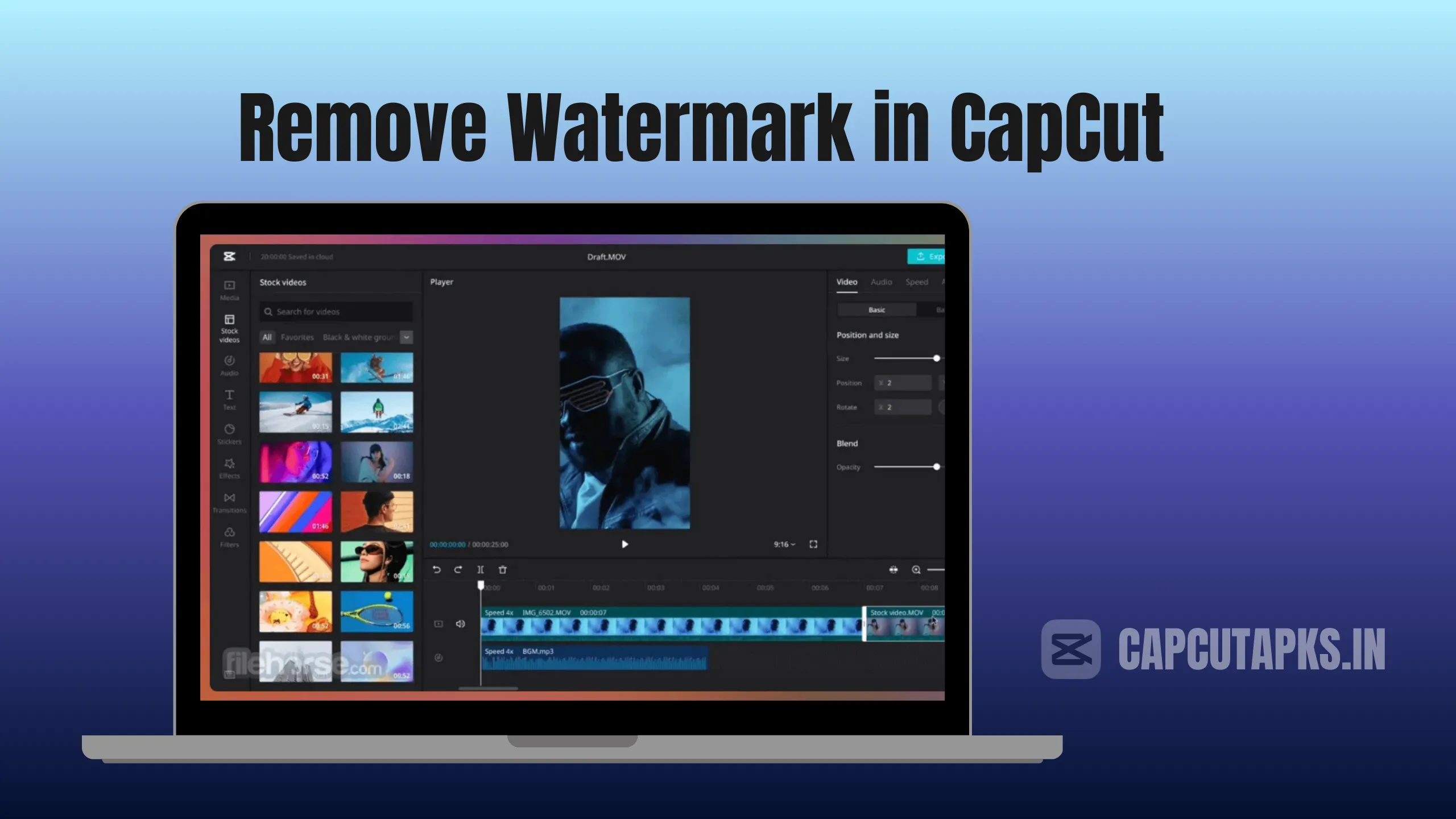
Navigating the process to remove watermark in CapCut has evolved with recent updates, making it accessible even for beginners. Start by opening the app and loading your project. If the mark is at the end, locate the settings menu on the homepage and disable the “add default ending” option to prevent its automatic inclusion. For templates, identify the branded clip in the timeline and delete it before exporting.
On desktop versions, access the “AI remove” feature under the basic video tools: adjust the brush to highlight the area, then apply the removal for a natural pixel reconstruction. This method preserves quality without introducing blur, ensuring your video remains sharp. For persistent embedded marks, consider cropping the frame or applying a mask to obscure the section subtly. Always preview the export to confirm the changes, and if using the mobile app, ensure the latest version from sources like Capcutapks for optimal functionality.
Remove Watermark in CapCut Online Free
Exploring online options to remove watermark in CapCut online free provides flexibility without needing app installations. Tools like WatermarkRemover.io automate the process using AI to detect and erase marks while reconstructing backgrounds. Upload your exported video, select the affected area, and download the cleaned file in formats such as MP4 or WebM. Similarly, Media.io offers batch processing for multiple clips, ideal for creators handling bulk content. These platforms maintain high resolution, making them suitable for social media uploads. For a no-signup experience, Ezremove.ai delivers quick results with manual brush precision, ensuring privacy and efficiency.
How to Remove Watermark in CapCut Template
Templates in CapCut streamline editing but often include built-in watermarks that require specific handling. To remove watermark in CapCut template, begin by importing the template and scrutinizing the timeline for the branded layer. Isolate the element—usually a text or image overlay—and delete it directly. If locked, duplicate the template and edit the copy to bypass restrictions. Use the mask tool to cover persistent marks without altering the core design. Exporting after these adjustments yields a clean version, perfect for customization. This approach keeps the template’s effects intact while eliminating distractions.
How to Remove Watermark from Video in CapCut PC
Desktop users benefit from advanced features to remove watermark from video in CapCut PC. Launch the software, import your footage, and navigate to the “Video” tab. Select “AI remove” from the basic editing panel, then brush over the watermark for automatic erasure. The AI analyzes surrounding pixels to fill gaps naturally, avoiding distortions. For outro watermarks, trim the final seconds via the timeline. This method supports higher resolutions up to 4K, ensuring professional-grade outputs. Regular updates enhance accuracy, so check for the newest build through reliable downloads like Capcutapks.
Does CapCut Pro Remove Watermark?
Upgrading to CapCut Pro unlocks comprehensive watermark management, addressing the query of whether CapCut Pro removes watermark. The subscription eliminates default marks across all exports, including templates and custom projects. It also provides unlimited access to AI tools for precise removals without limitations found in the free version. Priced affordably, it caters to frequent editors seeking seamless workflows. While free methods exist, Pro ensures consistency, making it a worthwhile investment for professional creators.
| Feature | CapCut Free | CapCut Pro |
|---|---|---|
| Watermark Removal | Limited (manual deletion or one-time options) | Unlimited automatic removal |
| AI Tools Access | Basic brush for simple marks | Advanced pixel reconstruction |
| Template Editing | Restricted layers | Full customization without brands |
| Export Quality | Up to 1080p with marks | 4K without any distractions |
| Cost | Free | Subscription-based |
Comparison of Tools to Remove Watermark in CapCut Without Blur
When seeking solutions to remove watermark in CapCut without blur, several tools stand out for their AI-driven precision. Pixelbin excels in batch processing, supporting multiple formats while maintaining clarity. WatermarkRemover.io offers instant results for single files, ideal for quick edits. HitPaw provides browser-based versatility, though processing times vary with file size. Media.io handles diverse platforms like YouTube and Instagram, ensuring no quality loss. AVCLabs focuses on high-resolution support, from 720p to 4K. BeeCut emphasizes ease with no installation needed, and Vmake allows real-time previews without signups. Each tool preserves visual appeal by intelligently filling erased areas.
| Tool | Key Strength | Supported Formats | Processing Time | Free Tier Limits |
|---|---|---|---|---|
| Pixelbin | Batch removal | MP4, WebM | Fast | File size caps |
| WatermarkRemover.io | AI auto-detection | MP4, MOV | Seconds | Watermark on exports |
| HitPaw | Cross-platform | AVI, MP4 | Variable | Subscription for advanced |
| Media.io | No blur guarantee | 3GP, M4V | Quick | Batch limits |
| AVCLabs | High-res support | AVI, MOV | Moderate | Preview restrictions |
| BeeCut | No install | WEBM, MP4 | Instant | Basic features only |
| Vmake | Real-time test | AVI, MP4 | Fast | Export quality caps |
Best Practices for CapCut Video Editing
Maintaining brand consistency ranks high among effective CapCut strategies; incorporate uniform colors, fonts, and logos across projects to build recognition. Staying attuned to trending effects, sounds, and text styles on social platforms can amplify reach, drawing in more viewers through timely relevance. Utilizing the preview function refines outputs, allowing adjustments to mimic audience experiences precisely. When exporting, opt for balanced settings in resolution and frame rate to optimize file size without compromising quality. Trimming excess elements like pauses or repetitions sharpens pacing, while leveraging templates accelerates creation—customize them to match your aesthetic for efficient, professional results.
For additional insights on advanced techniques, refer to the official CapCut resource on exporting clean videos .
FAQs
How Do I Remove a Watermark from a Video on CapCut?
To remove a watermark from a video on CapCut, access the settings to disable default endings or use the AI remove tool for embedded marks, ensuring a clean export.
How Can I Remove a Watermark from a Video?
Removing a watermark from a video involves tools like CapCut’s built-in features or online removers that employ AI to erase and reconstruct affected areas seamlessly.
Does CapCut Charge to Remove Watermarks?
CapCut offers free methods for watermark removal, but full access without restrictions requires a Pro subscription, which charges a fee for enhanced capabilities.
Can I Save a CapCut Video Without Watermark?
Yes, you can save a CapCut video without watermark by deleting branded clips, using AI tools, or opting for Pro features during export.