How to Use Template on CapCut Desktop: 7-Step Guide
CapCut Desktop stands out as a versatile video editing tool designed to streamline the creation process for users across various skill levels. Whether you’re producing content for social media platforms or professional presentations, this software offers an intuitive interface that enhances productivity on a larger screen. With features like precise timeline controls and keyboard shortcuts, it eliminates the limitations often encountered in mobile editing, such as restricted storage and smaller displays. By integrating advanced effects, transitions, and audio adjustments, CapCut Desktop empowers creators to transform raw footage into polished videos without needing extensive technical expertise.
The rise in demand for high-quality online content has led many to explore desktop-based editors. CapCut Desktop, available for Windows and Mac, provides seamless compatibility across devices, allowing users to switch between platforms effortlessly. This flexibility is particularly beneficial for those managing projects on the go. Moreover, the software’s free version includes a wide range of tools that rival paid alternatives, making it accessible for beginners while offering depth for experienced editors. As content creation evolves, understanding how to leverage pre-built elements within the program becomes crucial for saving time and achieving professional results.
What Are CapCut Templates and Why Use Them?
CapCut templates serve as ready-made frameworks that include animations, text placeholders, and media slots, enabling quick customization without starting from scratch. These structures are ideal for various video types, from promotional clips to personal vlogs, as they automate repetitive tasks like aligning elements or applying effects. By using templates, editors can focus on creative aspects rather than technical setup, resulting in faster turnaround times and consistent quality.
Incorporating templates into your workflow can significantly boost efficiency, especially when working on CapCut Desktop. They draw from popular trends on platforms like TikTok, ensuring your content remains relevant and engaging. For instance, templates often come with built-in music syncs and visual effects that align with current viral styles. This approach not only simplifies editing but also helps maintain brand consistency across multiple videos. As a result, creators using CapCut Desktop through sites like Capcutapks can produce standout content that captivates audiences without overwhelming complexity.
| Pros of Using Templates on CapCut Desktop | Cons of Using Templates on CapCut Desktop |
|---|---|
| Saves time by providing pre-designed layouts | Limited customization for highly unique projects |
| Ensures professional-quality animations and transitions | May require internet for initial template access |
| Easy integration with personal media files | Potential over-reliance reduces original creativity |
| Free access to a vast library | Some advanced templates locked behind Pro version |
| Compatible with Windows and Mac systems | Occasional compatibility issues with older hardware |
System Requirements for Running CapCut Desktop Templates
To ensure smooth performance when using templates on CapCut Desktop, your computer must meet specific hardware and software standards. These requirements prevent lags during rendering and allow full utilization of features like high-resolution exports. Below is a detailed breakdown:
| Component | Minimum Requirement | Recommended for Optimal Performance |
|---|---|---|
| Operating System | Windows 10 or macOS 10.13 | Windows 11 or macOS 12 or higher |
| Processor | Intel Core i3 or equivalent | Intel Core i5 or better |
| RAM | 4 GB | 8 GB or more |
| Graphics | Integrated graphics | Dedicated GPU with 2 GB VRAM |
| Storage | 2 GB free space | 5 GB or more for large projects |
Meeting these specs guarantees that templates load quickly and edits apply without interruptions, enhancing overall user experience.
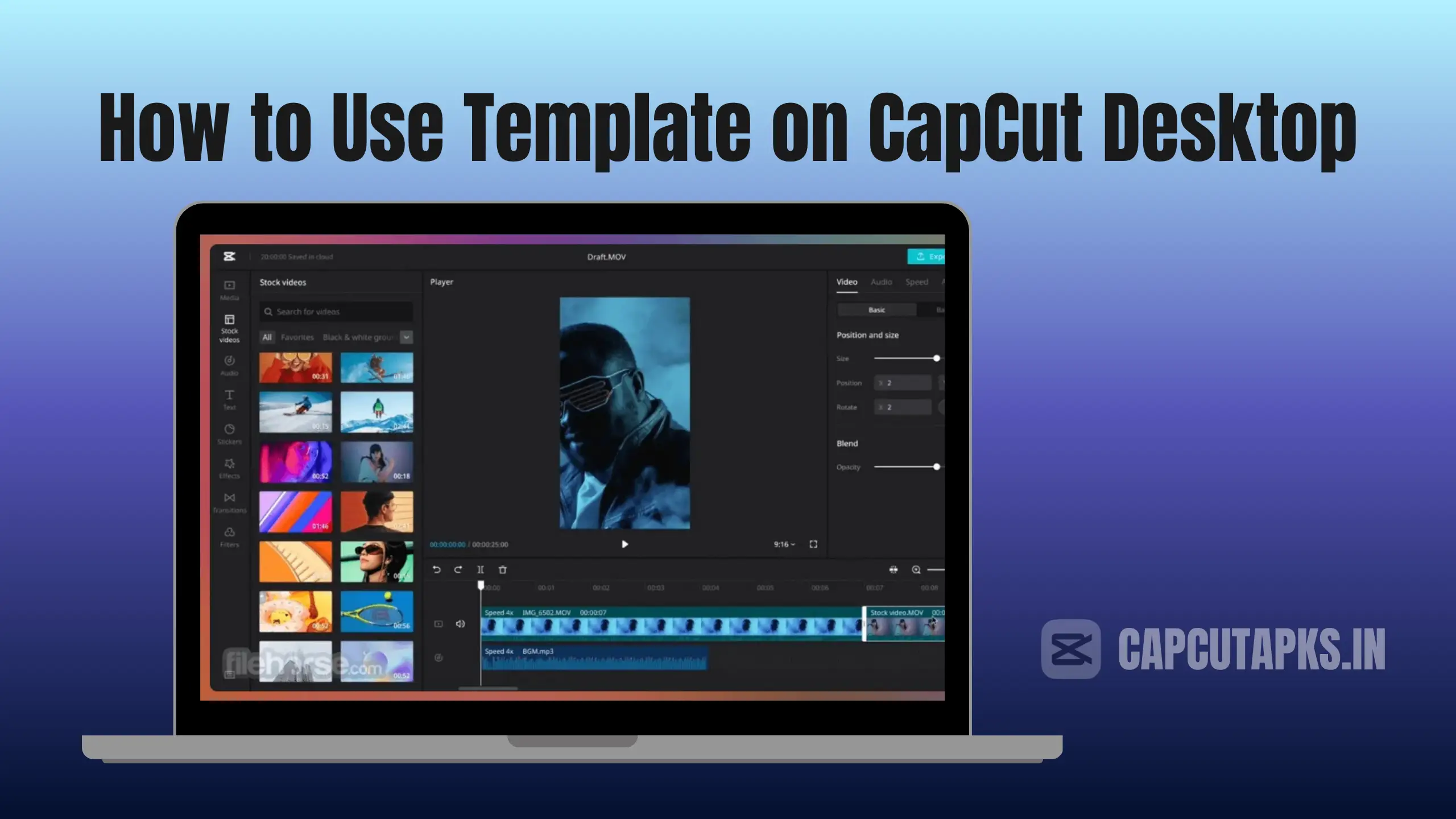
How to Use Template on CapCut Desktop on Laptop: Step-by-Step Process
Getting started with templates involves a straightforward installation and navigation process. Begin by downloading the latest version of CapCut Desktop from reliable sources like Capcutapks, which offers secure and updated files for both Windows and Mac users. Once downloaded, follow the on-screen prompts to install the application, ensuring you grant necessary permissions for optimal functionality.
After installation, launch the program and sign in with your account to access the full library. Head to the templates section, typically located in the main menu or sidebar, where you’ll find categorized options tailored to different content needs. Browsing through these allows you to preview demos, helping you select one that aligns with your vision.
Customization is where the real magic happens. Import your media by dragging files into the workspace or using the import button. Replace placeholders with your videos, images, or audio tracks, adjusting durations as needed. For text elements, double-click to edit content, fonts, and colors to match your branding. Audio tweaks, such as volume balancing or adding sound effects, can be done directly on the timeline for precise control.
Enhance your project further by applying additional effects from the built-in library. This might include speed ramps for dynamic pacing or chroma key for background removal. Preview the entire video to check flow and make iterative changes. When satisfied, export in your desired format and resolution, ensuring watermark-free output in the free version.
For those wondering how to use TikTok templates on CapCut PC, the process is similar—search for TikTok-specific categories within the templates tab and integrate viral elements seamlessly. If you encounter issues like “I can’t find templates in CapCut PC,” ensure your software is updated and check your internet connection, as templates often require online syncing.
How to Edit Template in CapCut PC for Personalized Results
Editing a selected template on CapCut Desktop allows for deep personalization. Start by dissecting the timeline to understand layer structures, then modify individual components like transitions or overlays. This level of control ensures the final product reflects your unique style while retaining the template’s efficiency.
Advanced users can experiment with keyframe animations for custom movements or integrate third-party assets. Remember to save progress frequently to avoid data loss, especially during complex edits.
How to Create a Template in CapCut PC from Scratch
Building your own template begins with a blank project. Add reusable elements such as text boxes, effects, and music tracks, then save the file as a base for future use. This method is perfect for recurring content series, allowing quick adaptations without rebuilding each time.
How to Use CapCut Templates on Mac: Key Differences
While the core functionality remains consistent, Mac users benefit from optimized integration with Apple’s ecosystem, such as faster rendering on M-series chips. Access templates via the same menu, but leverage trackpad gestures for smoother navigation.
Tips for Maximizing Templates on CapCut Desktop for Free
- Explore trending templates regularly to stay aligned with platform algorithms.
- Combine multiple templates for hybrid designs that stand out.
- Use keyboard shortcuts to speed up the editing process.
- Test exports on different devices to ensure compatibility.
- Backup projects to cloud storage for easy access across devices.
- Experiment with AI tools in the Pro version for automated enhancements.
- Join online communities for template sharing and inspiration.
To delve deeper into advanced techniques, consider this comprehensive guide on creating custom templates from WikiHow, which provides additional insights for power users.
Comparison: CapCut Desktop vs. Mobile for Template Usage
When deciding between platforms, understanding differences can guide your choice.
| Feature | CapCut Desktop | CapCut Mobile |
|---|---|---|
| Screen Size | Larger for precision | Compact for portability |
| Template Library Access | Full, with search filters | Limited to app trends |
| Customization Tools | Advanced effects and keyframes | Basic edits only |
| Export Speed | Faster with dedicated hardware | Slower on devices |
| Cost for Pro Features | Same pricing | Often bundled with mobile perks |
This comparison highlights why desktop is preferred for complex projects.
Conclusion
Mastering how to use template on CapCut Desktop revolutionizes video editing by combining ease with professional outcomes. Through Capcutapks, users gain access to a robust toolset that supports creative freedom without financial barriers. By following these guidelines, you’ll elevate your content, engaging viewers more effectively across digital platforms.
FAQs
How to Use CapCut Template Link on PC?
Paste the link into the search bar within CapCut Desktop’s template section to load and edit directly.
How to Apply a CapCut Template?
Select the template, import your media, customize elements, and export the finished video.
How to Copy a Template in CapCut PC?
Duplicate the project file in your workspace and modify as needed for variations.
How to Use CapCut Template from TikTok on PC?
Search for the template ID or name in CapCut Desktop and apply it to your clips.
For further reading on template integration, explore this tutorial from CapCut’s official resource, offering step-by-step visuals.