How to Add Text in CapCut: 7 Tricks That Get More Views
Whether you’re crafting viral TikToks, polished Instagram Reels, or engaging YouTube Shorts, knowing how to add text in CapCut is one of the most powerful skills a content creator can have in 2026. Text overlays, animated captions, and stylized subtitles are no longer optional — they’re the engine behind high-retention, high-engagement video content.
This complete guide covers everything from how to add text on CapCut mobile (Android & iPhone) to how to add text on CapCut PC, including animations, templates, text-to-speech, and pro tips you won’t find in basic tutorials. If you’ve been wondering how top creators make their reels look so sharp, the answer usually starts here.
What Is CapCut and Why Does Text Matter So Much?
CapCut is a free, feature-rich video editing app developed by ByteDance, the same company behind TikTok. Available on Android, iOS, Windows, macOS, and browser, it has become the go-to editing tool for creators worldwide. One of its standout capabilities is its powerful text system — giving you control over fonts, effects, animations, timing, and even AI-generated captions.
Adding text to your videos serves multiple strategic purposes. Captions make your content accessible to viewers who watch without sound, which accounts for a massive portion of social media consumption. On-screen titles strengthen your brand identity. Call-to-action text drives engagement. And animated text — when synced with music and motion — is what separates average videos from viral ones.
According to content creation experts, videos with captions and on-screen text consistently outperform those without, both in watch time and shares. That’s why learning how to add text in the CapCut app correctly is non-negotiable if you’re serious about growth in 2026.
How to Add Text on CapCut Mobile (Android & iPhone)
Learning how to add text on CapCut mobile is straightforward, and the steps are nearly identical for both Android and iPhone users. Here’s a detailed walkthrough:
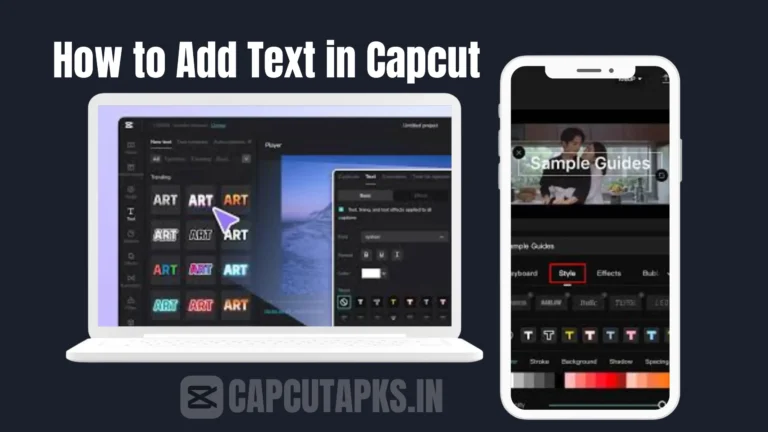
Open the CapCut app on your smartphone and tap the “+” icon to begin a new project. Select the video from your camera roll and import it into the timeline. Once your clip is loaded, tap “Text” from the bottom toolbar. You’ll see the option “Add Text” — tap it, and a text input box will appear on your video preview screen. Type your message, then tap the checkmark to confirm.
After placing your text, you can drag the text box to reposition it anywhere on the frame. To adjust timing, grab the edges of the text layer in the timeline and extend or shorten its duration. The Style tab lets you change font, size, colour, alignment, and add effects like outlines, shadows, and text backgrounds. For animation, tap the “Animation” option inside the text panel and choose from In Animation, Out Animation, or Loop Animation styles — options include fade, bounce, typewriter, slide, and dozens more.
A few pro tips for mobile text editing: use larger fonts for headlines and smaller ones for subtitles; always use contrasting colours so your text is readable on any background; and keep each text element on screen long enough for viewers to read comfortably without pausing.
How to Add Text on CapCut PC (Windows & Mac)
How to add text on CapCut PC follows a slightly different interface but offers even more precision and control. Here’s the complete process:
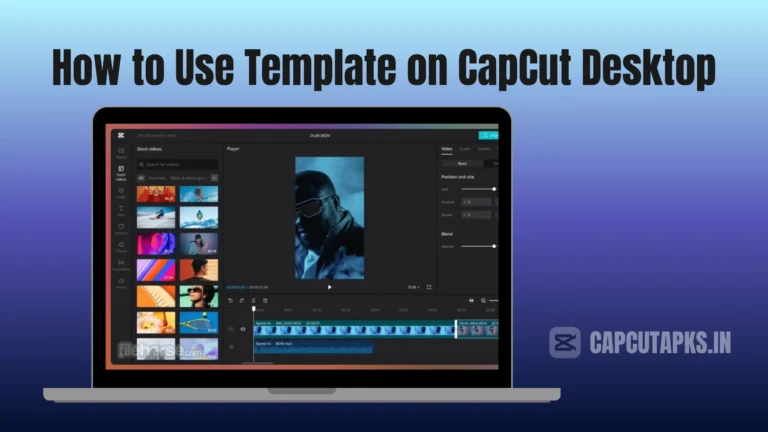
Launch CapCut Desktop and click “New Project” on the home screen. Import your video by clicking the import button in the top-left, then drag your clip down into the timeline. Position the playhead (the vertical scrubber) at the exact frame where you want your text to appear. Next, click the “Text” tab from the left-side panel or top toolbar — this opens your full typography workspace.
Click “Add Text” and a text box will appear in the preview window. Type your content and use the right-side panel to customize everything: font family, size, colour, background box, stroke, shadow, alignment, and spacing. To animate your text on PC, select the text layer and navigate to the “Animation” panel on the right. Choose your preferred In, Out, or Loop animation and adjust the duration slider for precise timing.
For titles, CapCut PC also offers pre-built “Heading” styles — great for cinematic intros and chapter markers. Bold white text with a slight drop shadow tends to work beautifully for dark-background videos, while dark text on light overlays works better for bright, lifestyle-style content.
How to Add Text in CapCut Using Templates
One of the fastest ways to add professional-looking text is through CapCut text templates. These are pre-designed animated text presets categorized by theme — trending, sports, technology, vlog, aesthetic, and more. Rather than building your text style from scratch, you simply pick a template, swap in your words, and adjust the timing.
To access templates on mobile, go to Text → choose from the “Styles” or “Templates” section. On PC, they appear within the Text panel on the left sidebar. Templates are especially useful when you want your text to match current viral aesthetics — many popular CapCut templates in 2026 feature bold motion graphics, glitch effects, and gradient fills that are proven to boost viewer engagement.
How to Animate Text in CapCut Mobile
Knowing how to animate text in CapCut mobile can dramatically improve the visual quality of your content. Static text gets ignored; moving text gets noticed.
After adding and customizing your text, tap the “Animation” button in the text editing panel. You’ll find three categories to work with. “In Animation” controls how your text enters the frame (fade in, fly in, typewriter, bounce, etc.). “Out Animation” controls how it exits (fade out, fold, slide away). “Loop Animation” keeps your text in continuous motion while it’s visible on screen (options like flicker, wave, shake, and pulse).
You can also control the speed of each animation using the slider that appears when an effect is selected. For music-synced content, try timing your text animations to the beat of your background track — this creates that polished, professional feel that characterises top-performing reels.
How to Use CapCut Text to Speech
CapCut text-to-speech is one of the app’s most powerful — and underutilized — features. It converts your typed text directly into a spoken voiceover using AI-generated voices, saving you the time of recording audio yourself.
To use it, add a text layer to your video as described above. Once the text is on screen, look for the “Text to Speech” option in the text editing panel (it may appear as a speaker icon on some versions). Tap it, and CapCut will generate a voiceover using one of its built-in AI voices. You can choose from different voice styles — female, male, narrative, casual, or character-style voices — and adjust the volume, speed, and pitch to match your content tone.
This feature is particularly valuable for educational content, explainer videos, and faceless creators who want high-quality audio without recording equipment.
How to Add Text to a CapCut Template
If you’re working with a CapCut template from the Explore page, the process to add or edit text is slightly different. Templates come with pre-placed text slots — these are placeholder boxes you can tap to replace with your own words.
Open the CapCut app and go to the “Templates” section. Browse or search for a template, then tap “Use Template.” Import your media when prompted. Once inside the editor, tap any existing text element in the preview and select “Edit.” Replace the placeholder text with your own, then adjust the font and colour if needed within the constraints of the template design. Not all templates allow full text customization, but most let you change the actual words and basic styling.
Pros and Cons of Adding Text in CapCut
| Feature | Pros | Cons |
|---|---|---|
| Text on Mobile | Easy to use, fast, touch-friendly | Smaller screen = less precision |
| Text on PC | Full control, larger canvas, better for detailed work | Requires desktop installation |
| Auto Captions | Saves time, AI-powered accuracy | May need corrections for accents/fast speech |
| Text Templates | Professional look instantly | Limited customization on locked templates |
| Text-to-Speech | No mic needed, multiple AI voices | Voices can sound robotic in longer clips |
| Text Animations | Boosts engagement dramatically | Overuse can look cluttered |
CapCut Text on Mobile vs. PC: A Quick Comparison
| Factor | CapCut Mobile | CapCut PC |
|---|---|---|
| Ease of Use | ★★★★★ | ★★★★☆ |
| Precision | ★★★☆☆ | ★★★★★ |
| Animation Options | ★★★★☆ | ★★★★★ |
| Template Access | ★★★★★ | ★★★★☆ |
| Export Quality | Up to 4K | Up to 4K |
| Best For | Quick edits, on-the-go | Long-form, detailed projects |
How to Edit Text on CapCut PC After It’s Been Added
Editing existing text on CapCut PC is quick. Click on the text layer in your timeline to select it. In the preview window, double-click the text box to enter edit mode and change your words. Use the right-side panel to modify the font, size, colour, outline, shadow, and animation without having to delete and re-add the text. If you saved a text style as a preset, you can apply it to new text layers in one click — a huge time-saver for consistent branding.
Pro Tips for Viral-Worthy Text in CapCut (2026)
Text is more than decoration — it’s a storytelling tool. Here are the most effective practices top creators use in 2026:
Keep your text short and punchy. Viewers scroll fast, and long sentences lose them instantly. Sync your text animations to the beat of your audio for a more cinematic, professional result. Use contrasting colour combinations — white on dark or yellow on darker backgrounds consistently outperforms low-contrast pairings in readability studies. Save your custom text style as a preset to maintain brand consistency across all your videos.
Use Auto Captions for any talking-head or voiceover content — CapCut’s Auto Captions feature generates subtitles automatically once you select your language and tap “Start.” Always review the generated captions for accuracy and adjust timing if needed. And for added authority, CapCut’s text-to-speech tool and auto caption generator can quickly add animated subtitles to your videos, making your content accessible to a broader audience including those with hearing impairments. MiracampCapCut
Frequently Asked Questions
How do you add text in CapCut on phone? Open CapCut, start a new project, import your video, tap “Text” from the bottom menu, and select “Add Text.” Type your content, customize the style, and drag the layer in the timeline to set its duration.
How to add text in CapCut iPhone? The process on iPhone is identical to Android. Open the app, create a project, tap “Text” → “Add Text,” type your message, then customize fonts, colours, and animations using the editing panel.
How do you add text in a CapCut template? Open your chosen template in CapCut, tap any pre-existing text element in the preview, and select “Edit” to replace it with your own words. Adjust colour and font within the template’s allowed settings.
How to animate text in CapCut mobile? After adding text, tap the “Animation” tab in the text editing panel. Choose from In, Out, or Loop animation styles such as typewriter, fade, bounce, or wave, then adjust the speed with the slider.
CapCut how to add text to speech? Add a text layer to your video, then tap the “Text to Speech” option in the text panel. Select a voice style, set your preferred speed and pitch, and CapCut will generate an AI voiceover from your typed text.
Final Thoughts: Master CapCut Text to Grow Faster in 2026
Understanding how to add text in CapCut is a foundational skill that directly impacts your content’s reach, retention, and engagement. From basic captions to animated overlays and AI-powered text-to-speech, CapCut gives every creator — beginner or advanced — the tools to produce scroll-stopping video content without expensive software.
Whether you’re editing on your phone or desktop, the steps are intuitive and the results are immediate. Start by mastering the basics, then experiment with animations, templates, and Auto Captions to find the style that resonates best with your audience.
For more in-depth tutorials, visit the official CapCut Resource Hub and the step-by-step guide at Miracamp CapCut Text Tutorial.