How to Remove Watermark in CapCut Mobile: Steps Guide
CapCut has grown into a leading video editing application for creators worldwide, with the CapCut Apk serving as the primary way many Android users access its powerful tools. One persistent challenge remains the CapCut watermark that appears on exported videos in the free version. This guide explores reliable methods to remove watermark in CapCut while maintaining video quality and following best practices.
The watermark serves as branding for the free tier, but many creators seek clean exports for professional results on platforms like YouTube, Instagram, or TikTok. Official options within the app, combined with thoughtful editing techniques, help achieve this without compromising the final output. This comprehensive resource covers mobile and desktop approaches, template-specific solutions, and considerations for users relying on the CapCut Apk, especially in regions with access restrictions.
Understanding the Different Types of CapCut Watermarks
Watermarks in CapCut typically fall into categories. The most common is the ending card, a short clip with the CapCut logo that appears at the conclusion of exported videos. Some templates embed the watermark more deeply into the footage, making it visible throughout or in specific frames. During export, an overlay watermark can also activate depending on settings and usage of free features.
These elements exist to encourage upgrades to paid plans, yet free users have workable options. Removing or hiding the watermark improves the polished appearance of content, which matters for audience engagement and brand consistency. Creators who master these techniques produce videos that feel more professional without visible app branding.
How to Remove Watermark in CapCut Free
Free users can address the watermark through built-in settings and minor adjustments. In the CapCut Apk or app, start the export process and tap the watermark preview in the top-left area. Select the hide option, which often grants a limited number of free uses—commonly around seven per period, depending on updates. This approach works well for occasional exports and avoids any quality loss.
Another straightforward technique involves the export menu directly. Navigate to the resolution settings, such as 1080p, where a watermark toggle appears. Switching it to hidden applies the change for that export. For the ending watermark specifically, open the project timeline, scroll to the very end, and delete the dedicated ending clip containing the logo. To prevent it from appearing in future projects, access the app settings via the gear icon and disable the “Add default ending” feature. These steps, drawn from consistent user reports and app behavior, provide reliable results in the free version.
For videos where the watermark persists more stubbornly, creative framing helps. Slightly adjusting the video position or adding a subtle background layer can mask minor overlays without noticeable impact on the overall composition.
How to Remove Watermark in CapCut Mobile Using CapCut Apk
Mobile editing remains popular due to its portability, and the CapCut Apk enables access for users in areas where the app faces restrictions, such as India. After installing a trusted version of the CapCut Apk, import your media and complete edits. Before exporting, review the preview carefully. If the watermark shows, use the hide function mentioned earlier for limited free removals.
When dealing with embedded watermarks from templates or effects, cropping offers a simple solution. Select the clip, enter crop mode, and adjust the frame boundaries to exclude the watermark area—typically a corner placement. This method preserves most of the content while requiring only minor reframing afterward. Test exports at different resolutions to ensure the final video meets platform requirements.
The CapCut Apk also supports basic overlays. Adding a small sticker or text element positioned over the watermark can cover it effectively, though this works best for static placements. Always preview the export to confirm cleanliness, as mobile processing can sometimes reintroduce elements if settings reset.
How to Remove Watermark in CapCut PC
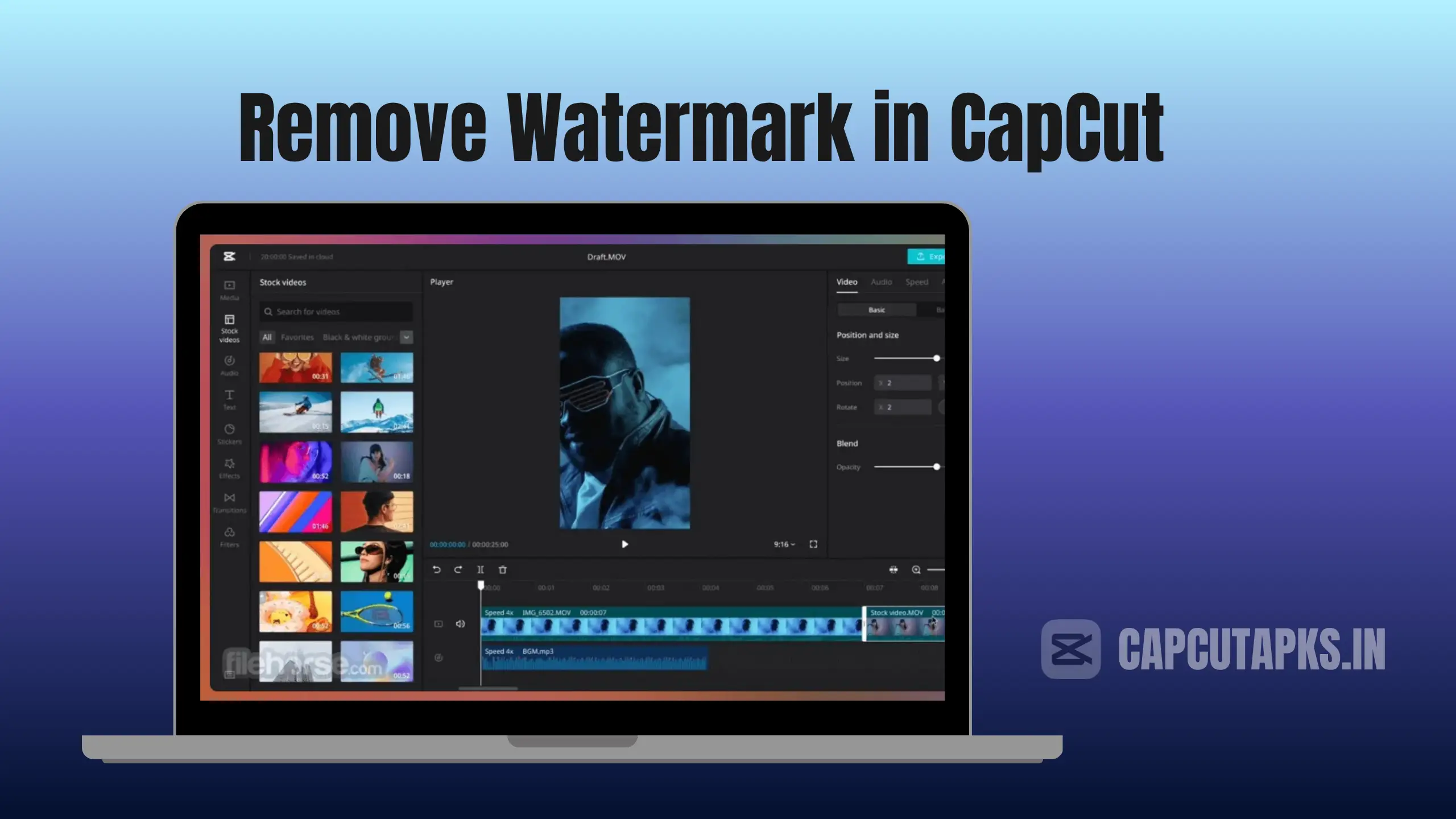
The desktop version of CapCut provides enhanced precision for complex projects. Open the application on your computer, import the video, and locate the timeline. For overlaid or embedded watermarks, select the clip and access the “AI remove” tool under basic video adjustments. Brush over the affected area with an appropriately sized tool, and the AI intelligently reconstructs the pixels using surrounding details. This delivers natural-looking results superior to manual cropping in many cases.
Export settings on PC mirror mobile options but offer finer control over resolution and format. Delete any ending clips directly in the timeline, and review advanced export parameters to ensure no watermark applies. Users who frequently edit benefit from the larger screen and more accurate selection tools available on desktop, making it ideal for detailed work.
For those transitioning from mobile projects, export drafts from the CapCut Apk and import them into the PC version for final refinements and watermark removal.
How to Remove Watermark in CapCut Template
Templates accelerate editing but often include baked-in branding. After applying a template in the CapCut Apk or desktop app, inspect the timeline layers carefully. Many templates place the watermark as a separate element that can be selected and deleted or hidden. When the watermark integrates more deeply, the AI remove tool becomes valuable—apply it directly to the affected frames for seamless inpainting.
Cropping or adding a covering element also works here. Resize and position a neutral graphic or background adjustment to obscure the watermark while maintaining the template’s stylistic intent. Test multiple template variations, as some include lighter branding that responds better to these adjustments. This approach ensures creative freedom without sacrificing the convenience of ready-made designs.
CapCut Watermark Remover Online and Web-Based Options
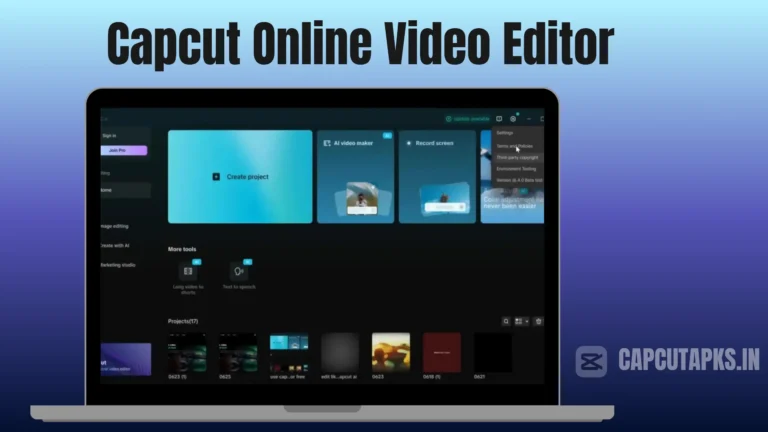
The web version of CapCut at the official site extends these capabilities to browser-based workflows. Upload your video directly, then use similar AI tools or manual adjustments to clean watermarks. This option suits users who prefer not to install software or need quick access across devices.
While various online watermark remover tools exist, sticking with CapCut’s native web editor ensures consistency with the app’s ecosystem and better quality preservation. For further reading on official no-watermark techniques, refer to CapCut’s dedicated resource on clean video exports.
Pros and Cons of Different Approaches
| Method | Pros | Cons |
|---|---|---|
| Free Hide/Limited Uses | No cost, quick for simple videos | Limited exports, may not cover all cases |
| Deleting Ending Clip | Permanent for future projects, high quality | Requires timeline editing each time |
| AI Remove Tool | Handles embedded watermarks naturally | Processing time varies with video complexity |
| CapCut Pro Subscription | Unlimited clean exports, extra features | Recurring cost |
This table highlights trade-offs to help users choose based on their needs and frequency of editing.
Mobile (CapCut Apk) vs PC: A Practical Comparison
| Aspect | CapCut Apk (Mobile) | Desktop/PC Version |
|---|---|---|
| Convenience | Excellent for on-the-go editing | Better for precision and larger projects |
| AI Tools Effectiveness | Solid for basic removal | More accurate selections and previews |
| Export Flexibility | Good with limited free options | Advanced controls and higher resolutions |
| Best For | Quick social media content | Professional or multi-layer edits |
These differences guide users toward the platform that best matches their workflow.
Additional considerations include maintaining video quality during removal. Avoid excessive cropping that reduces resolution, and always export at the highest feasible settings. For users in India accessing the CapCut Apk, download from verified sources to minimize security risks, and consider using a VPN where appropriate due to regional availability constraints stemming from past data privacy policies.
Common troubleshooting involves ensuring the latest app version, as updates frequently refine watermark handling and AI performance. If watermarks reappear unexpectedly, double-check export settings and template layers. Creators who combine these techniques report consistently clean outputs suitable for monetized or branded content.
Investing time in learning these methods enhances overall editing efficiency. Whether producing short-form videos or longer projects, removing the watermark contributes to a more professional presentation that resonates better with viewers.
One key practice involves previewing exports thoroughly before finalizing. Another helpful habit is organizing projects with watermark removal in mind from the start, such as selecting templates known for minimal branding.
Many wonder about saving videos without any watermark. The combination of timeline edits, hide options, and AI tools makes this achievable in most scenarios. Questions often arise around whether watermarks can be fully removed on CapCut. Yes, through the methods outlined, including official features and careful editing. Removing a watermark from a general video follows similar principles of selection and replacement, though results depend on the source material. Regarding availability in certain regions like India, restrictions trace back to broader concerns over data handling by the parent company, leading many to rely on the CapCut Apk with appropriate precautions.