How to Remove Watermark in CapCut: Quick Guide
Many creators use CapCut Apk to edit videos quickly on mobile devices, but the free version adds a watermark to exported clips. This guide explains the most effective, up-to-date ways to get clean exports without watermarks in 2026—focusing on free methods first, then paid options. All steps work on the latest CapCut versions for Android, iOS, and desktop.
Two Main Types of CapCut Watermarks
CapCut usually adds two kinds:
- Ending card/logo — a short clip or logo at the very end of the video.
- Overlay or template watermark — a small logo in the corner or baked into certain templates/effects.
Most free methods target these separately for the best results.
Remove Ending Watermark (Easiest Free Method)
The ending watermark is the most common and simplest to eliminate permanently.
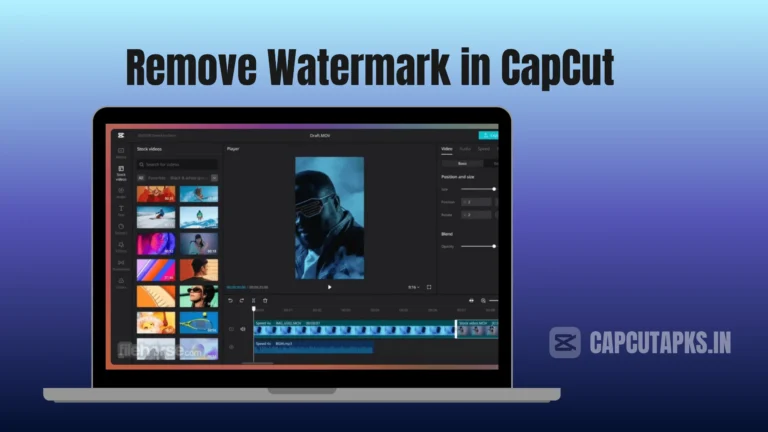
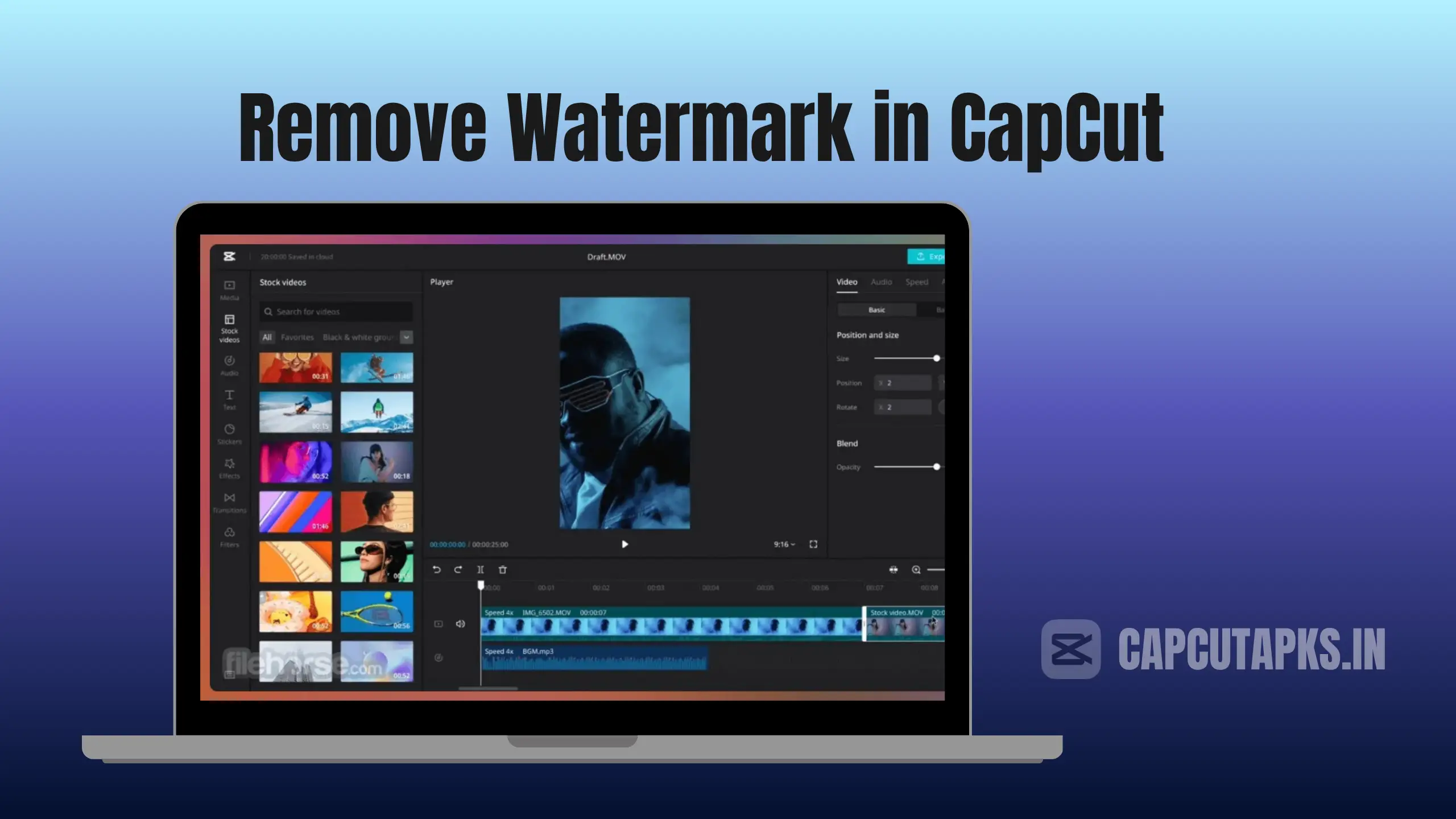
- Open your project in CapCut (mobile or desktop).
- Scroll to the very end of the timeline.
- Tap or select the CapCut logo/end clip (usually a black screen or branded frame).
- Tap the delete/trash icon to remove it completely.
- To stop it from appearing in future projects: Go to Settings (gear icon) → toggle off “Add default ending” or “Default ending.”
This method gives watermark-free exports in the free version for most basic edits. It works reliably across Android, iOS, and PC versions in 2026.
Hide or Remove Overlay Watermark During Export
For the small corner logo that sometimes appears:
- Finish editing → tap Export.
- In the export screen, look for the watermark preview (often top-left).
- Tap it and choose “Hide” or “None” (some versions give limited free hides per day/week).
- Alternatively, in export settings (next to resolution like 1080p), find the “Watermark” toggle → set to off/hidden.
This grants several free clean exports before prompting for Pro.
Handle Template Watermarks
Templates often embed branding more stubbornly.
- After applying a template, check the timeline layers.
- Select and delete any separate logo/text layer if visible.
- If embedded: Use the crop tool → slightly zoom in or adjust frame to push the watermark outside the visible area.
- Popular 2026 trick: Change aspect ratio to 5:8 or similar → this shifts the watermark off-screen → export → then crop the extra black space in your gallery or another app.
This keeps most of the template design intact while removing the mark.
Desktop/PC Methods (Including AI Remove)
On CapCut PC:
- For overlaid logos: Select clip → go to “Basic” or “Smart tools” → “AI remove.”
- Brush over the watermark area → let AI fill it naturally using surrounding pixels.
- Delete ending clip as described above.
- Export with watermark toggle off.
PC offers better precision for complex removals compared to mobile.
Free Workarounds When Options Are Limited
- Crop hack — Zoom/scale video slightly so watermark falls outside frame → export → crop back in gallery.
- Overlay cover — Add a small sticker, text, or duplicate clip layer over the watermark spot.
- Screen record workaround — Play finished video full-screen → record with phone screen recorder → trim edges if needed (lower quality but 100% free).
These keep quality decent for social media posts.
Pros and Cons of Removal Methods
| Method | Pros | Cons |
|---|---|---|
| Delete ending clip | Permanent, zero quality loss | Must do per project (unless default off) |
| Export hide toggle | Fast, built-in | Limited free uses in 2026 |
| AI remove tool | Handles embedded marks well | Slower on mobile, needs good background |
| Crop / aspect ratio trick | Completely free, no limits | May lose small edges of footage |
| CapCut Pro | Unlimited, all features unlocked | Monthly cost |
Mobile (CapCut Apk) vs Desktop Comparison
| Feature | CapCut Apk (Mobile) | Desktop Version |
|---|---|---|
| Speed & portability | Best for quick edits | Slower setup, better control |
| AI remove accuracy | Good for simple cases | More precise brushing |
| Free export limits | Same limited hides | Often more generous |
| Best for | TikTok/Reels creators | YouTube/long-form editors |
When to Consider CapCut Pro
If you edit frequently and hit free limits, Pro removes all restrictions:
- Unlimited watermark-free exports
- Extra effects, filters, 4K support
- No ads
In India (where official app access can be restricted), many users download CapCut Apk modded/Pro versions from trusted sources for no-watermark exports. Be cautious with third-party APKs—stick to verified links to avoid security issues. Official Pro works via subscription if accessible.
Quick Tips for Clean Results
- Always preview export before saving.
- Update CapCut regularly—new versions sometimes change watermark behavior.
- Avoid heavy template/effect combos that force watermarks.
- For stubborn cases, combine methods (delete ending + crop + hide toggle).
These steps let most users export watermark-free videos in 2026 using only free tools. The delete-ending + export-toggle combo covers 80–90% of cases without quality loss.